BannerPixel: Minecraft Banner Maker

A free, browser-based Minecraft banner maker. Choose a base color, add patterns, stack up to six layers, preview the result in real time, and copy the /give command for Java Edition.

How to make a Minecraft banner with the Minecraft banner maker

Building a banner is five small decisions. Work left to right on the editor above and the whole thing takes about a minute — no account, no download, nothing to install.

1

Choose your base color

Sixteen dyes give sixteen cloths, white through black. Click a swatch under Base color and the preview changes immediately. This colour is the canvas: every pattern sits on top of it, and it is what shows through wherever a pattern leaves a gap.

2

Add patterns

Pick a dye under Pattern color, then click any tile in the pattern grid to drop it on the banner. The tabs — All, Stripes, Shapes, Corners, Symbols — keep the list short, and hovering a tile names the pattern and what it looks like.

3

Arrange the layers

Each click adds a layer on top, so the newest pattern covers the older ones. The Layers panel lists them top-first: use the arrows to reorder, the bin to remove. Six is the in-game limit, and the editor refuses a seventh rather than build something the loom cannot copy.

4

Preview your banner

The preview is drawn on the same 20 × 40 pixel grid the game uses, so what you see is what you will craft. The shield beside it shows the design on a shield face, which is where most banners end up once they leave the wall.

5

Copy the command

Copy the /give command and paste it into chat, export a 512 × 1024 transparent PNG, or copy the share link — the whole design lives in the URL, so a friend can open it instead of asking you to describe six layers out loud.

How to use your banner in Minecraft

Three ways to get a design in game: command, loom, or a different edition entirely. They are not interchangeable, so start with the one that matches your version.

Paste the /give command

Press T to open chat, paste the command, hit enter. You need cheats on, or operator rights on a server. On Java 1.20.5 and later the patterns travel in an item component: white_banner[banner_patterns=[…]]. Below that, the command stores them as BlockEntityTag NBT instead, which is why the editor lets you switch formats.

The banner arrives in your inventory in the exact colour and order shown in the Layers panel — bottom layer first.

Craft it at a loom

No cheats? Use a loom: one banner plus a dye in the top slots gives you the base colour, then each pattern item adds one layer. Apply the layers from the bottom of the list upward, since a new pattern always covers the one before it.

Most patterns need their own pattern item — find them in dungeon and village chests, or trade with a cartographer and shepherd. Six is the hard limit at the loom.

Java vs Bedrock

Java Edition accepts banner patterns in commands; Bedrock Edition does not, so a copied /give line will hand you a blank banner there. On Bedrock, build the design at a loom and copy the layer order by hand.

Bedrock also allows some patterns to be crafted directly with dyes, and its colour order in data values is different from Java — another reason not to copy numeric IDs between editions.

All 42 Minecraft banner patterns

The game registers 43 patterns, and one of them is the blank base. Everything else is here, grouped by the shape you actually see, with the English name the loom uses for each.

Stripes and halves

The plainest building blocks. Stripes run edge to edge — Stripe Top, Stripe Center, Stripe Bottom, Stripe Left, Stripe Middle, Stripe Right, plus the diagonal Stripe Downleft and Stripe Downright and the narrow Small Stripes. Halves split the cloth once: Half Horizontal, Half Horizontal Bottom, Half Vertical and Half Vertical Right.

Stripe TopStripe CenterStripe BottomStripe LeftStripe MiddleStripe RightStripe DownleftStripe DownrightSmall StripesHalf HorizontalHalf Horizontal BottomHalf VerticalHalf Vertical Right

Diagonals and corner squares

Diagonals cut the banner in half along a slope, which makes them the fastest way to build two-tone heraldry: Diagonal Left, Diagonal Right, Diagonal Up Left, Diagonal Up Right. The corner squares are solid blocks pinned to one edge — Square Top Left, Square Top Right, Square Bottom Left, Square Bottom Right — and they stack neatly into chevrons and frames.

Diagonal LeftDiagonal RightDiagonal Up LeftDiagonal Up RightSquare Top LeftSquare Top RightSquare Bottom LeftSquare Bottom Right

Triangles

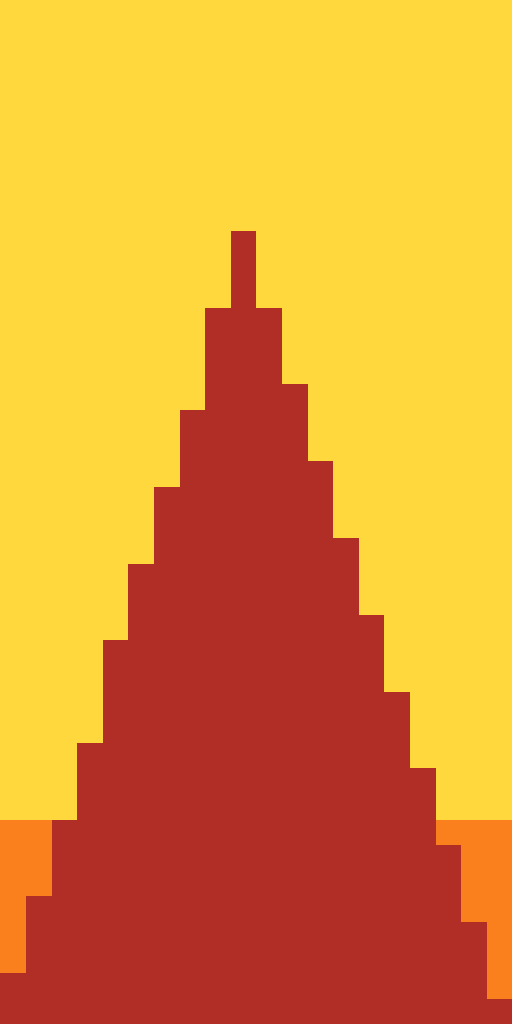
Four shapes, all built from a single peak. Triangle Top and Triangle Bottom fill half the banner with one wide triangle; Triangles Top and Triangles Bottom split that peak into a pair. Put a triangle on a stripe and you get a pennant; mirror two of them and you get a zigzag.

Triangle TopTriangle BottomTriangles TopTriangles Bottom

Borders, crosses and masonry

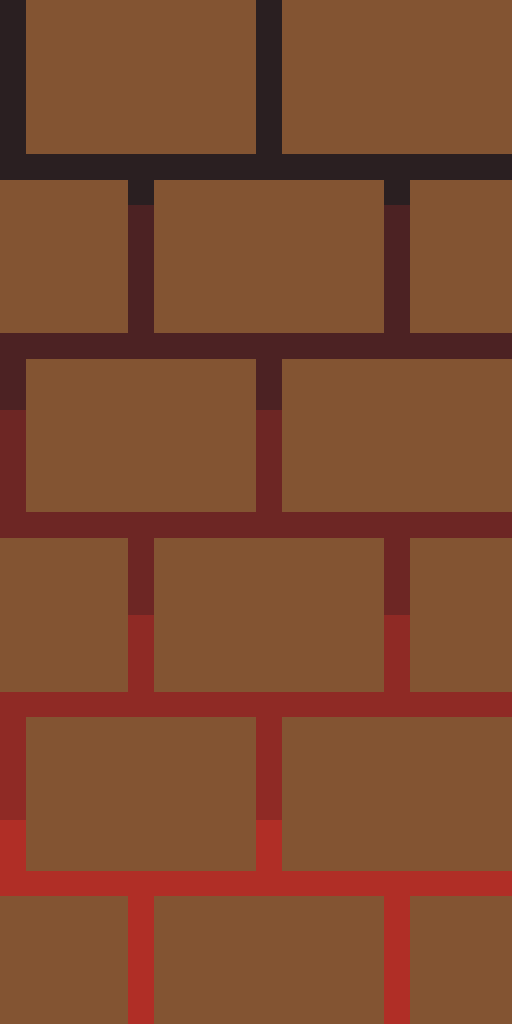
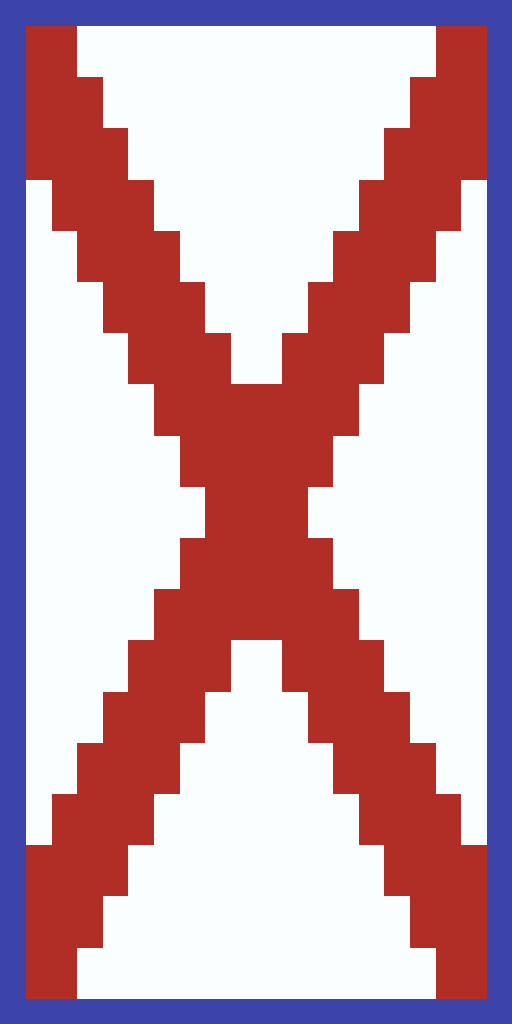
The patterns that frame a design. Border draws a one-pixel frame, Curly Border adds indented brackets in each corner, and Bricks gives you offset masonry courses. Cross is a saltire that runs corner to corner, while Straight Cross is an upright plus sign — the two are easy to confuse in the picker, so check the thumbnail.

BorderCurly BorderBricksCrossStraight Cross

Circles, flowers and weather

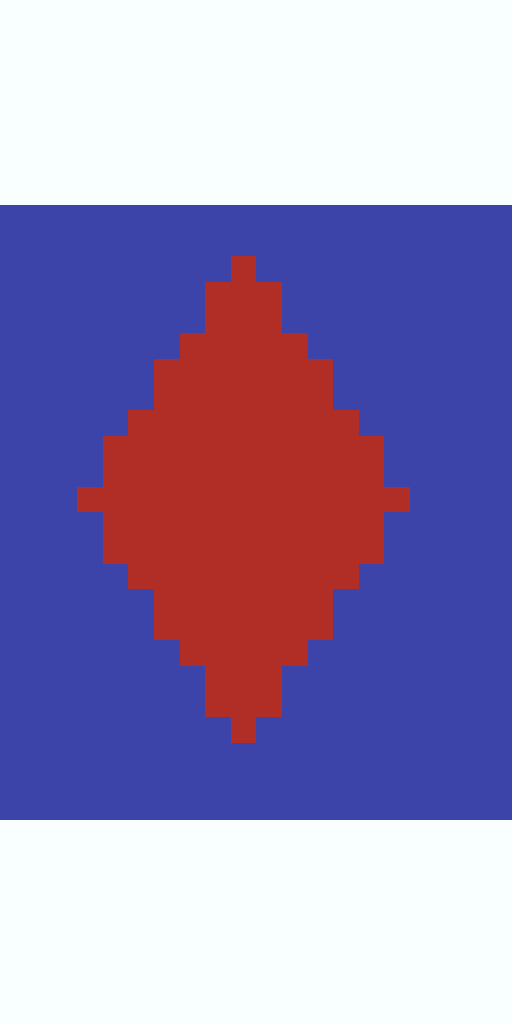
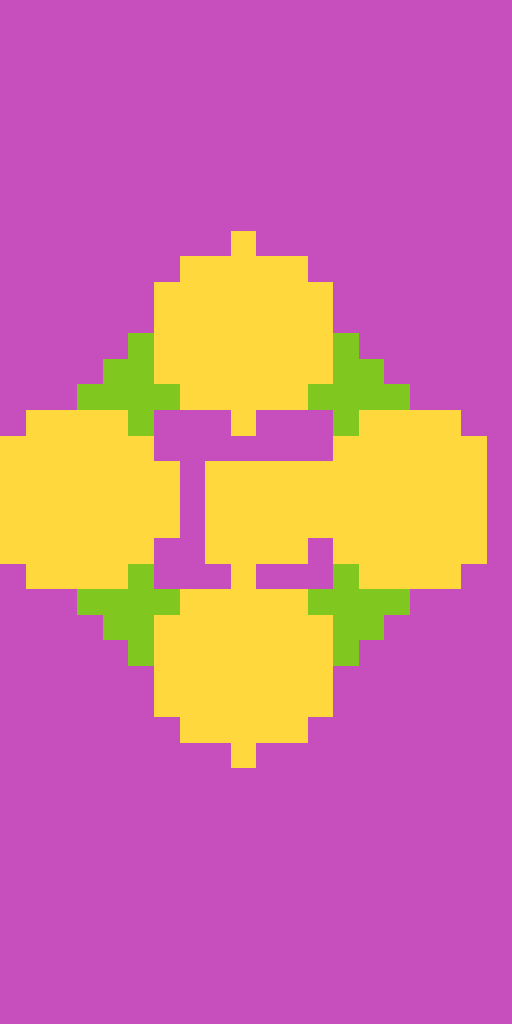
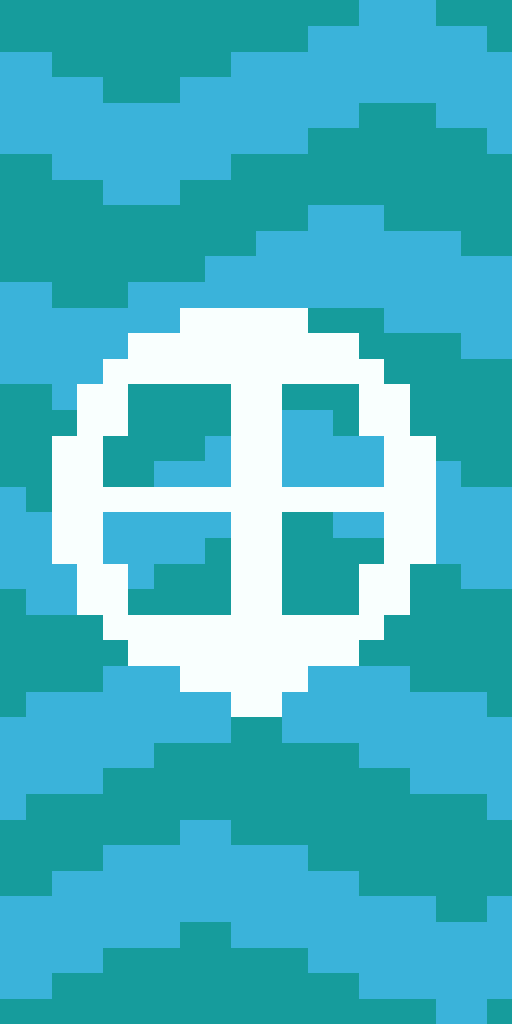
The decorative middle of the catalogue: Circle, Rhombus, Flower, Globe, Flow, Gradient, Gradient Up, Guster and Mojang. Gradient fades towards the bottom and Gradient Up fades towards the top, both in visible steps rather than a smooth blur. Guster is the swirling wind face, and Mojang is the studio emblem.

CircleRhombusFlowerGlobeFlowGradientGradient UpGusterMojang

Mob faces

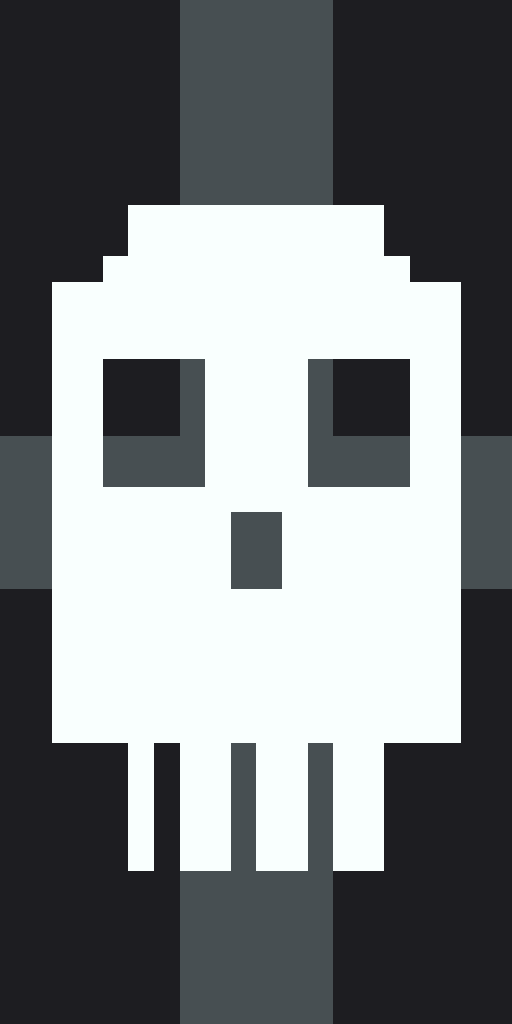
Three faces that read from across a village: Creeper, Skull and Piglin. They are the busiest patterns in the set, so give them a plain field — a solid base with one stripe underneath is usually enough — and keep the layer order clean, because a face buried under two other patterns turns to mud.

CreeperSkullPiglin
Example banners you can open and edit

Eight finished designs, each one a live share link. Click any of them to load the exact layers into the editor, then recolour or restack to make it yours.

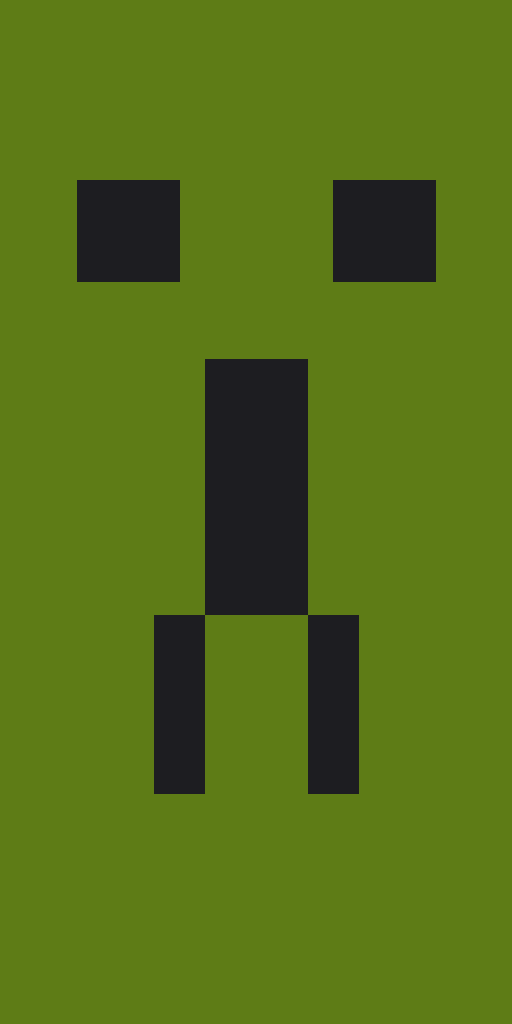
The Creeper Classic is one layer on green; Blue Pennant shows how two stripes and a rhombus read from a distance. Forge stacks a gradient under bricks to fake a lit furnace wall, and Nordic Cross puts a border over a saltire to frame the whole cloth. Every design here fits inside six layers, so each one can be rebuilt at a loom without commands.

More Minecraft banner tools and guides

Four shorter pages for when you already know what you want and need the layers written down.

All 42 patterns, documented

The full registry with a swatch of every pattern and its single-pattern command.

Open the pattern list →

Cape maker previews

Eight designs at cape scale, plus what works for custom capes and what needs a mod.

Preview cape designs →

Frequently asked questions

The short answers to what people ask most about banner patterns, commands and PNG export.

Is BannerPixel really free?

Yes. The editor, the PNG export and the /give command are free and need no account. There is no signup wall, no watermark on the PNG and no paywalled pattern set.

How do I get my banner into Minecraft?

Pick Java 1.20.5+ in the command box, copy the /give command, then paste it into chat in-game. On older Java versions switch to the 1.13–1.20.4 format first, which writes the patterns as NBT instead of an item component.

Why does the give command not work on Bedrock?

Bedrock Edition has no /give syntax for banner patterns, so no tool can hand you a finished banner there. Craft the same design at a loom: blank banner, dye, then the pattern item. The layer order on this page is the order to apply them.

How many layers can a banner have?

Six through normal play, and the loom stops accepting patterns after that. Commands and external editors can push a banner to sixteen visible layers, but the tooltip only lists the bottom six, which is why this editor caps you at six.

Can I edit a layer after I added it?

Yes. Click a layer in the Layers panel to select it, then pick a different dye under Pattern color. You can also nudge layers up and down to change which pattern sits on top, or delete a layer and rebuild it.

Does the design carry over to a shield?

Yes. A shield keeps the base colour and every pattern of the banner you combine it with, so the shield preview on this page is exactly what you get in game. Shields are made with a banner plus one iron ingot and six planks.

What resolution is the exported PNG?

512 × 1024 pixels with a transparent background, scaled up from the 20 × 40 in-game texture with nearest-neighbour sampling, so the edges stay hard instead of turning into a blurry mess.

Are these the official Minecraft textures?

No. Every pattern mask on this site is drawn from scratch as pixel art, and BannerPixel is not affiliated with Mojang or Microsoft. Nothing here is copied from the game files or from another banner tool.